Snowflake SQL Code Syntax Shortcuts

Snowflake SQL includes several syntax extensions that can simplify your SQL code.

SELECT * EXCLUDE / REPLACE

Enables excluding a column list or transforming target columns when querying wide tables. This is useful on wide tables – stops you having to enumerate 30 columns to leave out or mask one. When combining these keywords, EXCLUDE must always be placed before REPLACE. Ref.

-- Drops sensitive columns while retrieving all others   
SELECT * EXCLUDE (ssn, credit_card_number)
FROM customers;

-- Replace a column value inline, keep everything else
SELECT * REPLACE (price * 1.1 AS price)
FROM products;

-- Combine both
SELECT * EXCLUDE (raw_json) REPLACE (upper(name) AS name)
FROM customers;

QUALIFY Clause

QUALIFY eliminates the most common subquery bloat pattern in analytics SQL. Filters window function results directly, eliminating the need to wrap code inside a nested Common Table Expression (CTE) or subquery in order to filter it. Ref.

Instead of writing:

SELECT 
    * 
FROM 
(
    SELECT 
        employee, 
        department, 
        salary,
        ROW_NUMBER() OVER (PARTITION BY department ORDER BY salary DESC) AS rn
    FROM 
        employees
) WHERE rn = 1;

use this:

SELECT 
   employee_id, 
   department, 
   salary,
   ROW_NUMBER() OVER (PARTITION BY department ORDER BY salary DESC) AS rn
FROM 
    employees
QUALIFY rn = 1;

RESULT_SCAN – reuse cached query results

Query the result set of a previous statement by its query ID – no re-execution needed. This is a common idiom in Snowflake SQL. Ref.

-- Run an expensive query once
SELECT customer_id, SUM(revenue) AS ltv
FROM orders
GROUP BY customer_id;

-- Immediately reuse its result (free — uses cache)
SELECT * FROM TABLE(RESULT_SCAN(LAST_QUERY_ID()))
WHERE ltv > 10000
ORDER BY ltv DESC
LIMIT 100;   

GROUP BY ALL

Eliminates the need to manually list out every non-aggregated column in your select clause. Ref.

SELECT country, city, department, SUM(sales) 
FROM sales_table 
GROUP BY ALL;

Note*: selecting and grouping by all columns is sometimes a code smell.


SELECT * ILIKE

Case-insensitive pattern matching. ILIKE ANY matches against multiple patterns in one expression. Ref.

-- Case-insensitive LIKE
SELECT * FROM products
WHERE category ILIKE '%widget%';

-- Match against multiple patterns at once
SELECT * FROM products
WHERE category ILIKE ANY ('%widget%', '%thingy%', '%gizmo%');

MIN_BY() and MAX_BY()

Finds the value of a column based on the minimum or maximum value of a completely different column without requiring a self-join. Ref.

-- Finds the name of the employee who has the absolute highest salary
SELECT MAX_BY(employee_name, salary) FROM employees;

ANY_VALUE Aggregate Function

Use ANY_VALUE() to pull an arbitrary value from a non-grouped column. Ref.

SELECT 
    user_id, 
    SUM(purchase_amount) AS total_spent,
    ANY_VALUE(latest_device_used) AS last_device
FROM 
    transactions
GROUP BY 
    user_id;

ARRAY_AGG and OBJECT_AGG

Can be used to simplify string concatenations or unnesting tables into multiple rows. Ref.

  • ARRAY_AGG: Groups multiple values into a single array per row

  • OBJECT_AGG: Pivots row-level attributes into a single JSON/Variant object

    -- Returns a JSON object like: {"Electronics": 1500, "Clothing": 400}
    SELECT 
        store_id, 
        OBJECT_AGG(category_name, total_sales) AS grp
    FROM 
        sales_data
    GROUP BY 
        store_id;

RATIO_TO_REPORT

Calculate each row’s proportion of a partition total without a self-join or subquery. Ref.

SELECT
    region,
    product,
    revenue,
    RATIO_TO_REPORT(revenue) OVER (PARTITION BY region) AS percent_of_region
FROM 
    sales;

Note*: The ORDER BY clause within the OVER clause is allowed in this function for syntactic consistency with other window functions but does not affect the calculation. Snowflake recommends not including the ORDER BY clause when using this function.


SAMPLE / TABLESAMPLE – fast approximate queries

Run queries on a random sample of rows or blocks for fast exploratory analysis. Ref.

-- Row-level sampling (Bernoulli) — ~10% of rows
SELECT * FROM orders SAMPLE (10);

-- Block-level sampling (system) — faster on large tables
SELECT * FROM orders SAMPLE SYSTEM (5);

-- Repeatable sample with seed
SELECT * FROM orders SAMPLE (10) SEED (97);

Note*: For SYSTEM or BLOCK sampling, the sample might be biased, in particular for small tables.


ASOF JOIN – nearest-match join

Join tables on the nearest (as-of) timestamp without expensive range join workarounds. For every row in the left table, it pairs with exactly one row from the right table that has the closest preceding or following timestamp. Ref.

-- Get the exchange rate in effect at the time of each order
SELECT
    o.order_id,
    o.order_ts,
    o.amount_usd,
    r.rate,
    o.amount_usd * r.rate AS amount_eur
FROM 
    orders o
ASOF JOIN fx_rates r
    MATCH_CONDITION (o.order_ts >= r.rate_ts) ON o.currency = r.currency;

INSERT OVERWRITE

Truncate-and-reload a table (or partition) atomically in one statement. Ref.

-- Atomically replace entire table
INSERT OVERWRITE INTO daily_summary
SELECT 
    date_trunc('day', order_ts) AS order_date,
    SUM(revenue) AS total_revenue
FROM 
    orders
GROUP BY 1;  

CREATE OR REPLACE + SWAP

Atomic table replacement: SWAP WITH lets you swap two tables instantly (blue/green deployments). Ref.

-- Rebuild without downtime
CREATE OR REPLACE TABLE orders_new AS
SELECT * FROM orders_staging WHERE is_valid = true;

-- Atomic swap — zero downtime
ALTER TABLE orders_new SWAP WITH orders;

-- Drop the old table (now named orders_new after swap)
DROP TABLE orders_new;

CLONE – zero-copy clone

Instantly clone tables, schemas, or entire databases. Uses no extra storage until data diverges. Ref.

-- Clone a table (instant, no storage cost)
CREATE TABLE orders_backup CLONE orders;

-- Clone to a point in time (time travel)
CREATE TABLE orders_yesterday CLONE orders
    AT (TIMESTAMP => DATEADD('day', -1, CURRENT_TIMESTAMP()));

-- Clone an entire schema for a dev environment
CREATE SCHEMA dev_schema CLONE prod_schema;

-- Clone an entire database
CREATE DATABASE mytestdb_dev_clone CLONE mytestdb_prod;

DIV0 and DIV0NULL

Performs safe division where divide-by-zero errors return 0 or NULL instead of throwing an error. Ref.

SELECT DIV0(10, 0); -- Returns 0

COUNT_IF

Returns the number of records that satisfy a condition or NULL if no records satisfy the condition. Ref.

SELECT 
    COUNT_IF(status = 'completed') AS num_orders_completed
FROM 
    orders

Rather than:

SELECT 
    SUM(CASE WHEN status = 'completed' THEN 1 ELSE 0 END) AS num_orders_completed
FROM 
    orders
SSMS: Tips and Tricks to Enhance Productivity


Set colours to differentiate between servers/environments

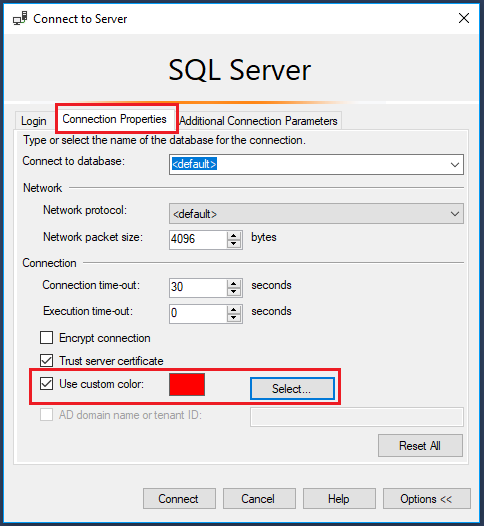
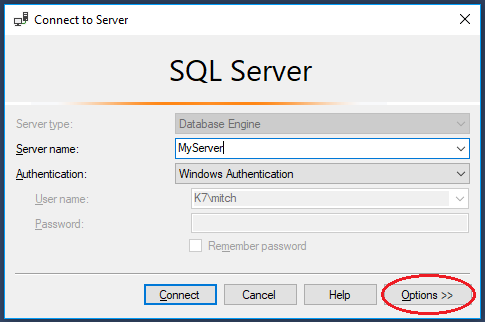
You can set SSMS connection properties to give a visual indication of which server your queries are connected to.

When you connect to a SQL Server instance, click on the ‘Options’ button:

ssms1

Then click on the ‘Connection Properties’ tab and choose a custom colour for your connection:

ssms2

Suggested colours for your environments:

  • Production – Red
  • UAT – Orange
  • QA – Yellow
  • Dev – Blue
  • Local – Green

Once set, every time you open a connection to a server, it will display the assigned colour in the SSMS status bar.

Configure SSMS tabs to only show file names

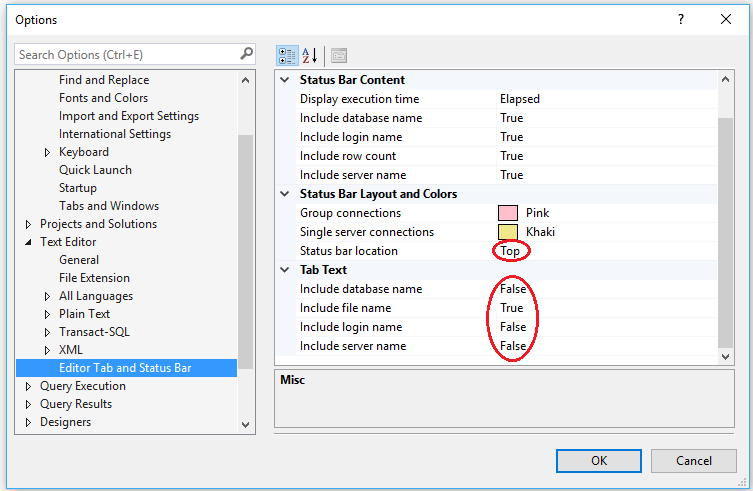
Follow Brent Ozar’s simple instructions here: SSMS 2016: It Just Runs More Awesomely (It’s not just for SSMS 2016). This makes tabs easier to read and pinning tabs is a great idea for often used scripts. [I also like to set my status bar position to the top of the query window]:

ssms3

While you are in the Options dialog, go to Tools -> Options -> Environment -> AutoRecover and make sure AutoRecover files is turned on, with appropriate values set.

Cycle through clipboard text

All Windows users will be familiar with the shortcut keys CTRL+C and CTRL+V. The ‘Cycle Clipboard Ring’ feature in SSMS keeps track of last 20 items you have cut/copied. You can use CTRL+SHIFT+V to paste the last copied item from the clipboard just as you would with CTRL+V. If you repeatedly press CTRL+SHIFT+V, you cycle through the entries in the Clipboard Ring, selecting the item you want to paste.

This also works in Visual Studio 2015+

List all columns in a table

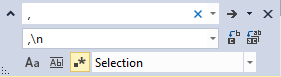
To quickly list all the columns in a table as a comma separated list, simply drag the ‘Columns’ folder in Object Explorer and drop it onto a query window. This creates a single line of comma separated column names; if you want to format as one column per line, you can use a search and replace utilising a newline with the regex search option turned on.

Highlight the comma separated list of columns you just created, type CTRL+H, turn on regular expression searching, enter a comma followed by a space  as the search text, and replace with a comma followed by a newline ,\n

ssms4

Disable Copy of Empty Text

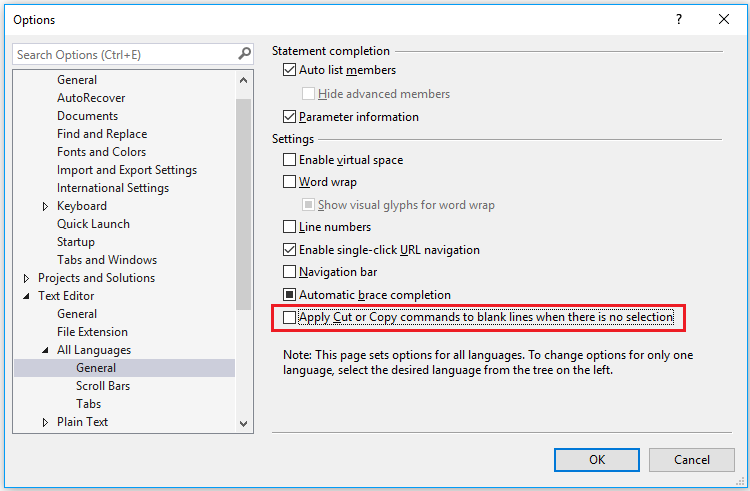
Ever had this happen to you? You select a block of text to copy, move to the place you want to paste it, and then accidentally hit CTRL+C again instead of CTRL+V. Your block of copied text has been replaced by an empty block!

You can disable this behaviour (I have no idea why disabled is not the default): go to Tools -> Options -> Text Editor -> All Languages -> General -> ‘Apply Cut or Copy Commands to blank lines when there is no selection’ and uncheck the checkbox.

ssms7

Set Tabs to Insert 4 Spaces

Avoid indentation inconsistencies when opening TSQL files in different editors: go to Tools -> Options -> Text Editor -> Transact-SQL -> Tabs -> Insert Spaces and click the radio button. Set Tab and indent size to 4.

Use GO X to Execute a Batch or Statement Multiple Times

The ‘GO’ command is not a Transact SQL statement but marks the end of a batch of statements to be sent to SQL Server for processing. By specifying a number after ‘GO’ the batch will be run the specified number of times. You can use this to repeat  statements for creating test data. This can be a simpler alternative to writing a cursor or while loop.

create table MyTestTable
(
Id int not null identity(1,1) primary key,
CreatedDate datetime2
)
GO

This will run the insert statement 100 times:

insert into MyTestTable(CreatedDate)select GetDate()
GO 100

Templates and Code Snippets

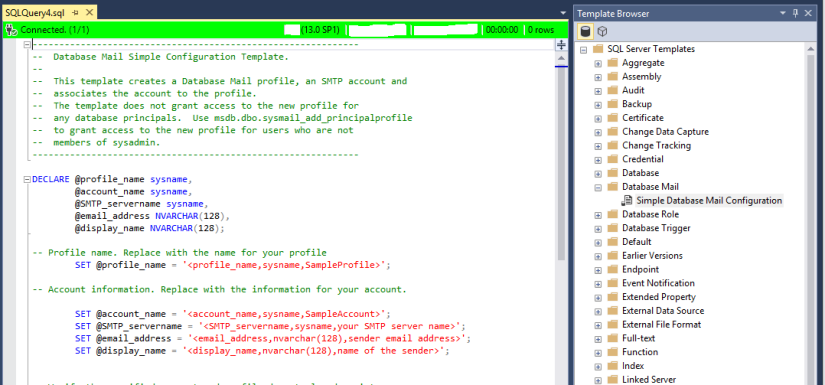
Many users are not aware of SSMS’s Template Browser. These templates contain placeholders/parameters that help you to create database objects such as tables, indexes, views, functions, stored procedures etc.

By default when you open SSMS, the Template Explorer isn’t visible.  Press Ctrl+Alt+T or use the View -> Template Explorer menu to open it. One of my favourite templates is the database mail configuration:

ssms8

Template Explorer provides a view of a folder structure inside the SSMS installation, which is located at C:\Program Files (x86)\Microsoft SQL Server\XXX\Tools\Binn\ManagementStudio\SqlWorkbenchProjectItems\Sql

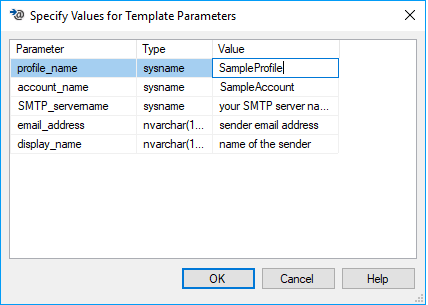
Templates contain parameter place holders: press Ctrl + Shift + M to open a dialog box that substitutes values for the template place holders:

ssms9

You can also add your own templates. Right-click on the SQL Server Templates node of the Explorer and choose New -> Folder and set the folder name. Then right-click on the folder and choose New -> Template. Add your code, with any parameters defined as:

< ParameterName, Datatype, DefaultValue >

Click Ctrl + Shift + M to check the parameter code blocks are well formed.

Code snippets are similar but simpler without parameters. Type CTRL + K + X to insert a code snippet.

Registered Servers

Most users have a number of servers they frequently connect to. The Registered Servers feature allows you to save the connection information of these frequently accessed servers.

You can create your own server groups, perhaps grouped by environment or by project.

Navigate to View -> Registered Servers. Then right-click on the ‘Local Server Groups’ and click on ‘New Server Registration’, and enter your connection details.

There is also a feature that allows windows only authentication to be used against a central server management server

Built in Performance Reports in SSMS

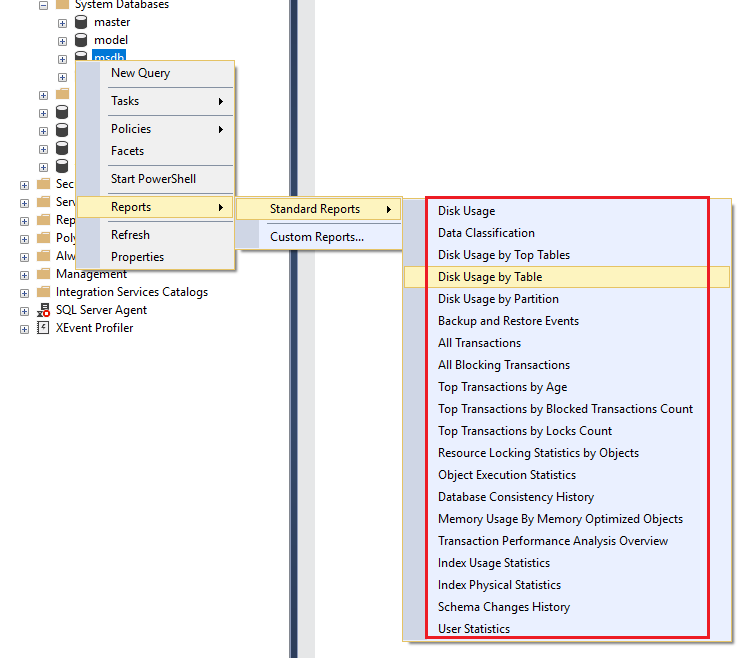
SSMS provides a number of built in standard reports. To access the database level reports, right click on a Database –> Reports –> Standard Reports –> Select a Report:

ssms6

 Useful SSMS Keyboard Shortcuts

Shortcut Action
CTRL+N Open new query with current database connection
CTRL+O Open a file in a new tab with current database connection
CTRL+R Toggle between displaying and hiding Results Pane
CTRL+M Include actual query execution plan
CTRL+L Display estimated query execution plan
CTRL+TAB Cycle through query windows
F4 Display the Properties Window
CTRL + ] Navigate to the matching parenthesis
CTRL+ALT+T Open Template Explorer
CTRL+SHIFT+M Specify values for Template parameters
CTRL+K+X Insert SQL code snippets
CTRL+SHIFT+U Change text to upper case
CTRL+SHIFT+L Change text to lower case
CTRL+K+C / CTRL+K+U Comment / Uncomment selected text
CTRL+F / CTRL+H Find / Replace

Splitting the Query Window to work on large queries

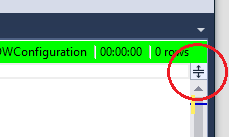
The query window can be split into two panes so that you can view two parts of the same query simultaneously. To split the window, simply drag the splitter bar at the top right hand side of the query window downwards. Both parts of the split window can be scrolled independently. This is useful if you have a large query and want to compare different parts of the same query.

ssms5

Vertical Block Select Mode

This is a feature I use often. You can use it to select multiple lines or a block of text over multiple lines, you can type text and it will be entered across all the selected rows, or you can paste blocks of text. To use it, hold down the ALT key, then left click on your mouse to drag the cursor over the text you want to select and type/paste the text you want to insert into multiple lines.

Keyboard Shortcut – ALT + SHIFT + Arrow Keys
Mouse – ALT + Left-Click + Drag

Object Explorer details

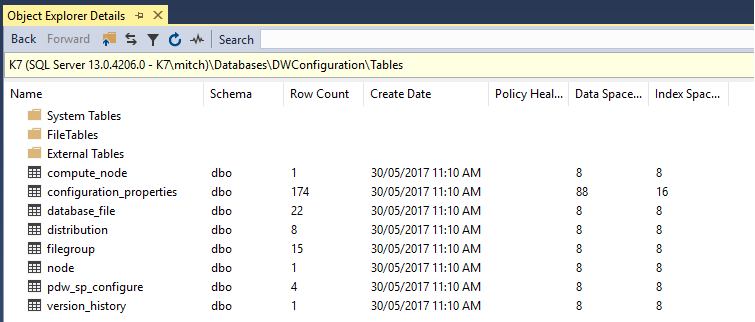
The Object Explorer Details window is a feature which very few developers use (including me, as I always forget it’s there!). It lists all the objects in a server and additional information like Row Count, Data Space Used, Index Space Used etc. It’s a quick way to see table row counts for all tables in a database.

The Object Explorer Details window is not visible by default. Click F7 or navigate to View -> Object Explorer Details to open it. To add columns, right click on the column header row and select those columns you want to see.

ssms10

Display Query Results in a Separate Tab

If you want to focus on the results after you run a query, and would like to give it as much screen real estate as possible, go to Tools -> Options -> Query Results -> SQL Server -> Results To Grid and enable the option “Display Results in a separate tab”.